







MT5 API + AI set up: from installation to your first trade query

In the first part of our MT5 API + AI series, we explored how generative AI is completely rewriting the rules of algorithmic trading, leveling the playing field for non-programmers. Now, it is time to transition from theory to practice. In this guide, we will build the actual engine that will power your automated trading journey.
By the end of this article, you will have your complete trading environment fully configured and ready for action. Here is what we are setting up:
- MetaTrader 5 – Up, running, and connected to a demo or live account.
- Claude Code – Installed, authorized, and standing by as your personal developer.
- Python Integration – Fully installed and linked to MT5, with all the heavy lifting handled entirely through Claude Code instructions.
The only things you need to do manually are install MT5 and Claude Code. Everything else - from configuring Python to setting up the connection - is handled entirely by AI.
Estimated setup time: About 30 minutes.
Let’s get started!
Overview of the process
Setting up your new automated trading workstation is incredibly straightforward. We have broken the entire process down into three main phases:
| Step | What to Do | Who Does It |
| Step 1 | Install MetaTrader 5 and connect to a demo account | You (Manual) |
| Step 2 | Install Claude Code (your AI programming agent) | You (Manual) |
| Step 3 | Install Python, link it to MT5, and run a test query | AI-Driven |
You don't need to touch Python or the MT5 API directly. You just describe what you want in plain language, and Claude Code handles the rest - writing the Python script, calling the MT5 library, and executing the API calls that control price data, orders, and positions. Everything past your instructions runs automatically, end to end.
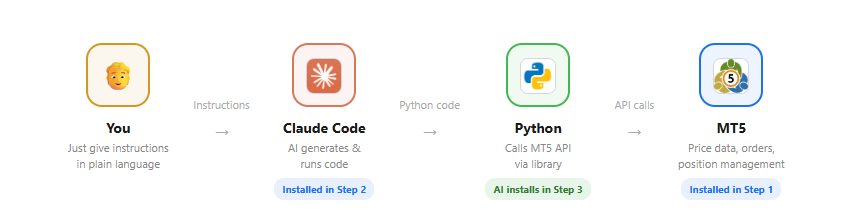
Step 1: Install MT5 and connect to an OANDA account
If you don't yet have an OANDA account, please open one first.
- Open an account at oanda.com/eu-****
- Once your MT5 sub-account is active, download the MT5 installer link provided in your dashboard. Run the downloaded setup file, click "Next" through the standard prompts, and click "Finish" to launch the MetaTrader 5 application.
- If a generic "Open an Account" window pops up automatically when you first launch MT5, simply click "Cancel" (you already created your account in the OANDA portal).
- Go to the top menu, click "File" -> "Login to Trade Account", and enter the following details:
- Login: Your MT5 Login ID from the OANDA portal.
- Password: Your account password
- Server: Select OANDATMS-MT5 Live (for real accounts) or OANDATMS-MT5 Demo (for your practice sandbox).
- Click "OK" to complete the login process.
- Glance at the bottom-right corner of the MT5 window. If you see active data transfer speeds (e.g., numbers climbing in Kilobytes like 99 / 7 Kb), congratulations! Your MT5 terminal is online, fully synced, and ready to be controlled by your AI.
Step 2: Install Claude Code
Using Claude Code requires an Anthropic account (free to create) and a paid subscription. (See pricing details).
There is a monthly cost, but compared to hiring a developer, it is extremely affordable. Start with the Pro plan and upgrade if you need more usage.
| Plan | Monthly cost | Notes |
| Claude Pro | $20 | A great starting point |
| Claude Max | $100 / $200 | For heavier usage |
Claude Code is available as a desktop application. The official guide covers the installation process in detail.
Once you launch the app and see the chat interface, Step 2 is complete.
Step 3: Let AI Build Your Environment
This is where the series truly shines. Python installation, MT5 integration -- everything is done just by giving instructions to Claude Code.
Install Python
Give Claude Code the following instruction:
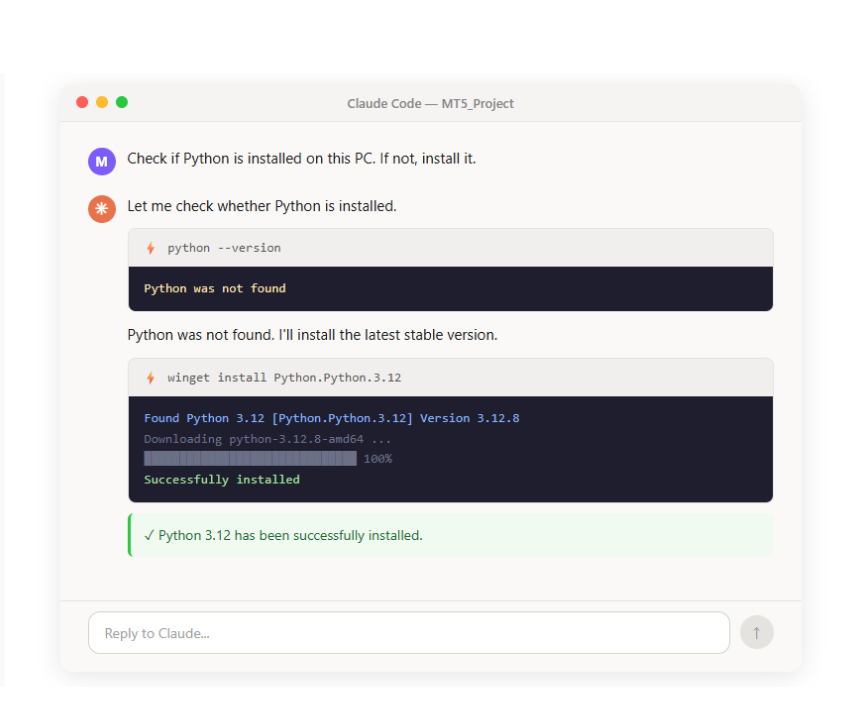
Claude Code checks the state of your PC and, if Python is not installed, installs it automatically. When prompted for permission, review the action and approve it.
Connect Python to MT5
Once Python is installed, give Claude Code the next instruction:
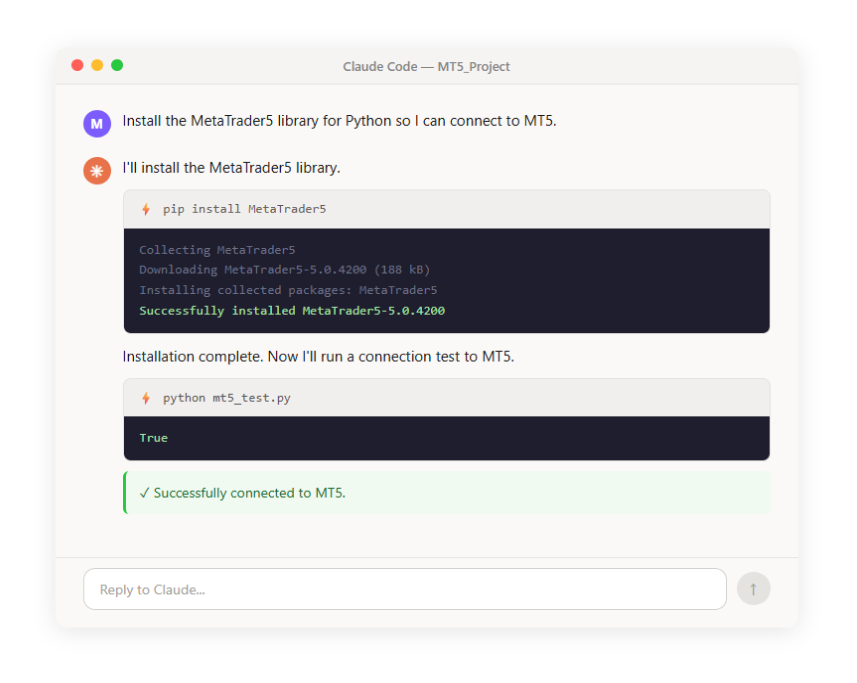
Claude Code automatically installs the required library and runs a connection test.
Verification: give your first real instruction
Now that the integration is complete, let's actually retrieve some MT5 data.
Make sure MT5 is running. To control MT5 from Python, MT5 must be running on the same PC and logged into an account. Keep both MT5 and Claude Code open at the same time.
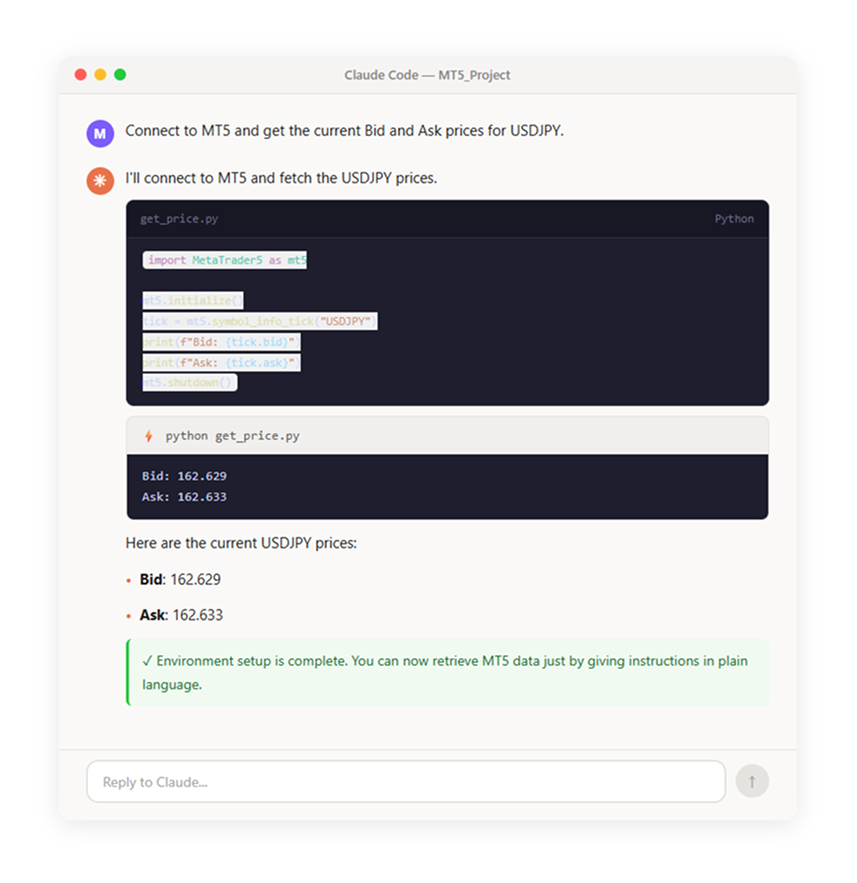
If prices are displayed, your environment setup is complete.
In just three steps, you now have an environment where you can control MT5 with plain-language instructions. You never had to type a single command or edit a configuration file yourself. That is the power of an AI coding tool.
Testing
Now that your environment is set up, let's try some different instructions. Simply change what you ask for to retrieve different data.
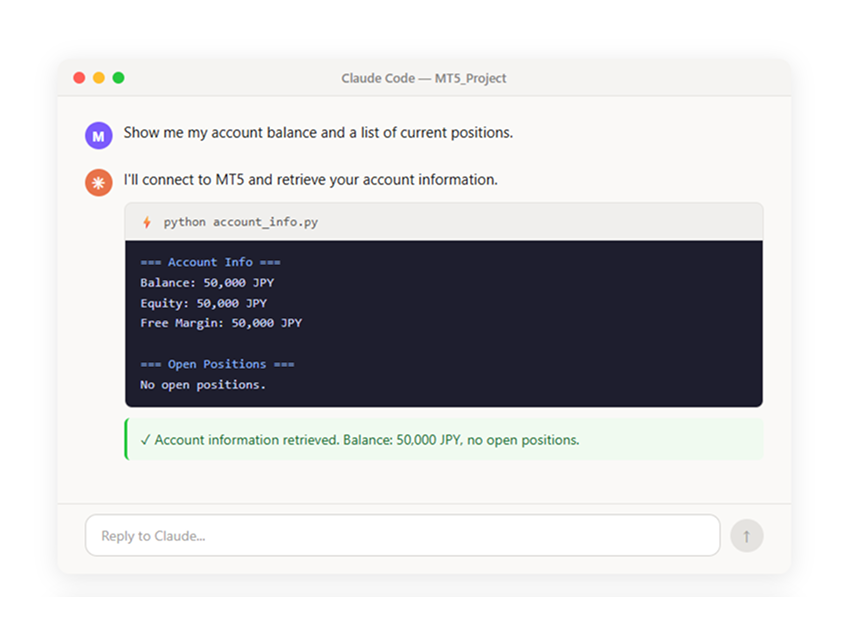
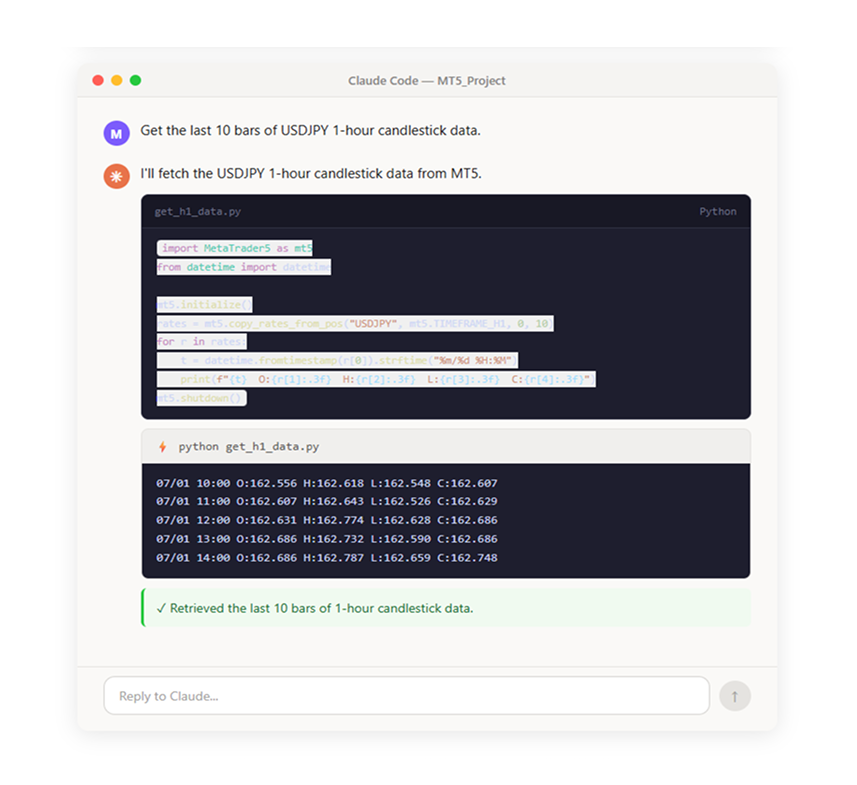
As you can see, just saying "show me my account info" or "get candlestick data" is enough -- Claude Code generates and runs the necessary code for you.
What to do when things go wrong
Even with AI doing the heavy lifting, you might run into a quick speedbump during your setup.
Don’t panic - that is completely normal!
In fact, this is where having Claude Code as your personal developer really shines. If you see an error, your first move should always be to copy the error message, paste it into Claude Code, and say: "fix this error." Most of the time, the AI will diagnose and fix it in seconds.
Here are the most common hiccups beginners face and exactly how to solve them:
1. "Cannot retrieve prices when connecting to MT5"
- The Cause: Your computer and your trading terminal aren't talking to each other.
- The Fix: Make sure your MT5 desktop application is actually open, running in the background, and successfully logged into your OANDA Europe account. If MT5 is closed, the AI cannot reach the market.
2. "Symbol name (e.g., EURGBP) not found"
- The Cause: Every broker names their assets slightly differently. While one broker uses EURGBP, another might use EURGBP.pro, EURGBP.m, or EURGBP#.
- The Fix: Look at the "Market Watch" window on the left side of your MT5 screen to see exactly how OANDA spells that asset. Tell Claude Code: "Use the exact symbol name '[Your Broker's Spelling]'."
3. "Claude Code is asking for permission to run a command. Should I say yes?"
- The Cause: For your security, Claude Code will never run a command on your computer's terminal without asking you first.
- The Fix: If you are ever confused or nervous about what the AI is trying to do, simply ask: "Explain what this command does before I approve it." Once you understand and feel comfortable, press approve; if you are still unsure, you can safely decline.
Still stuck? If you run into a broker-specific platform error, the OANDA Help Center is always a fantastic, official resource to get your terminal back online. But for any code-related issues, just let your AI developer handle the troubleshooting for you!
Summary
Setting up a local programming environment used to be the single hardest part of learning to code. Today, you completely bypassed that headache.
In three simple, seamless steps, you installed MetaTrader 5 and connected it to your secure OANDA Europe account. Then, you set up and authorized your new Claude Code assistant. Finally, you sat back and let the AI automatically handle the Python installation, environment configuration, and direct connection to your active terminal.
The beauty of this approach is that you don't have to write a single line of Python, configure complex system variables, or struggle with manual terminal commands. Your entire programming workspace was built simply by giving instructions to an AI in plain English
What's Next?
Now that your trading engine is fully configured and online, it's time to start analyzing the markets.
In part 3 - "Price Data Guide” we are going far beyond simple, real-time price checks. You will learn how to ask Claude Code to retrieve historical candlestick data for any asset class, automatically generate and display technical price charts, and export raw market data directly into clean, structured CSV spreadsheets. Just like today, we will do all of it using nothing but conversational, plain-language instructions. See you in the next guide!
This article is for informational purposes only and does not constitute investment advice or a recommendation. CFDs are complex instruments and carry a high risk of rapid loss of capital due to leverage. Please ensure you understand the risks involved. Past performance is not indicative of future results.
Latest blog posts:


Start trading now with fast account opening.
Sign-up now to trade the most active markets
Open account

