








Discover TradingView
TradingView is a professional charting social network where millions of traders track price movements and share ideas. By connecting your OANDA account with TradingView, you turn those insights into action instantly.
Multi-platform experience
Trade smarter with OANDA using tools to support more informed trading
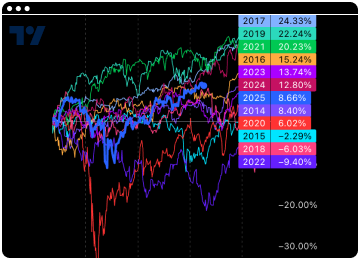
Advanced, interactive charts
- Super smooth, fast, and highly intuitive
- Supports many chart types: candlestick, line, Renko, Heikin-Ashi, range bars
- Ability to display multiple charts simultaneously on a single screen
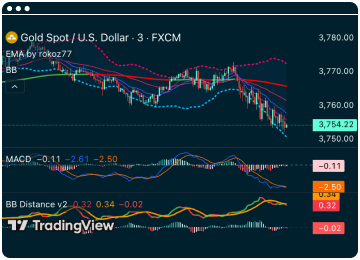
Massive database of indicators and technical analysis tools
- Over 100 built-in indicators (MACD, RSI, Bollinger Bands, etc.)
- Over 100,000 community-created indicators
- Built-in drawing tools (Fibonacci, channels, trend lines, etc.)
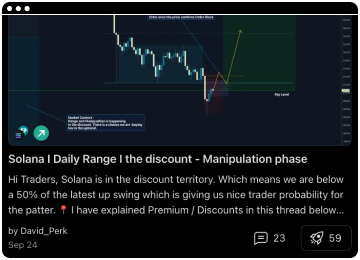
Community of Investors and Analysis Publications
- Ability to publish your own trading ideas
- Rate, comment on, and follow other users
- Browse thousands of technical analyses from all over the world
Learn from the Experts
Watch videos about TradingView
.png)
.png)
.png)
.png)
.png)
About the speakers

Krzysztof Kamiński
Analyst at OANDA TMS. Theoretical knowledge gained during economic studies, practical experience on the WSE, NYSE and CME stock exchanges. Professionally from the market since 2014. In the analysis, he focuses on the practical combination of technical and fundamental analysis, supported by intermarket correlations.

Stefan Cheplick
Stefan runs trader education for TradingView out of New York City, guiding traders from all corners of the globe to master new tools, features, and strategies. As a champion of education, he’s pushed TradingView's YouTube channel into overdrive, amassing 250,000+ subscribers and 26 million views, with 721,000 hours of watch time across 300+ highly detailed videos about trading. Stefan’s ultimate goal is to work with TradingView's content team to ensure traders learn every capability TradingView offers from advanced charting to screeners, options, news and more.
Level up
with TradingView paid plans
on us
Take your analysis further. Get promo codes for up to 12 months of TradingView Essential or Plus for free*. Unlock more indicators, multiple layouts, and 0 ads.
*Offer available only to clients with a CFDs account type who meet the terms outlined in the OANDA – TradingView 2025 Offer Terms & Conditions.

How to invest using an OANDA CFDs
Account with the TradingView platform

Step 1
To use the TradingView and OANDA integration, you must have an account under the CFDs account type. This service is not available for demo accounts.

Step 2
Visit the TradingView website: https://tradingview.com/broker/OANDA/ click Trade and follow the process

Step 3
To authorise TradingView’s access to your account, enter your login and password.
.png)
|
.png)
|
.png)
|
.png)
|
FAQs
- What markets can I analyze on TradingView?
On the TradingView platform, you can analyse virtually all global markets; however, you can only trade (open and close positions) on instruments offered by your broker, such as OANDA.
It is important to clearly distinguish between the analytical capabilities of the platform itself and the broker’s offering:
- Market analysis: You have access to advanced TradingView charts, fundamental data, heatmaps and multi-chart layouts for any asset worldwide, including shares, ETFs, cryptocurrencies, futures and bonds. (Note: access to certain advanced features depends on your specific TradingView subscription plan).
- Live trading (OANDA offering): Trading is limited to OANDA instruments, primarily Forex and CFDs (global indices, commodities and precious metals).
Tip: To check whether a particular instrument is available for trading, look for the OTMS suffix. These are visible only for the users who connect to their OANDA account in TradingView.
- How do I add indicators to a chart in TradingView?
To add indicators to a TradingView chart, follow these simple steps:
- Open the chart: Make sure you have the chart of the financial instrument you want to add indicators to open.
- Click the ‘Indicators’ button in the top menu of the chart.
- Search for an indicator: The ‘Indicators, metrics and strategies’ window will open. You can browse the available categories or use the search field to find a specific indicator (e.g. ‘RSI’, ‘MACD‘, ‘Moving Average’).
- Add an indicator to the chart: Click on the name of the selected indicator. It will be automatically added to your chart.
After adding the indicator, you can adjust its parameters. Hover your cursor over the indicator name on the chart and click on the ‘Settings’ icon (gear). A window will open where you can edit factors such as periods, colours and line styles.
- Can I trade directly from TradingView?
Yes, with an OANDA account, you can trade directly from TradingView charts. To do so, connect your OANDA trading account to the TradingView platform and search for instruments with the OTMS suffix.
- How do I set price alerts on TradingView?
Setting price alerts is a great way to stay up to date with market movements without having to constantly monitor charts. To do this:
- Open the chart of the financial instrument for which you want to set an alert
- Do one of the following to access the alerts panel:
- In the top menu of the chart, click the ‘Alert’ button (alarm clock icon)
- right-click anywhere on the chart and select ‘Add alert’
- hover your cursor over the price scale on the right side of the chart. A small ‘+’ symbol will appear next to the price. Click on it and then select ‘Add alert’.
- The ‘Create alert’ window will open, where you can adjust parameters such as: condition, value, activation options and notifications.
- Once you have configured all the options, click the ‘Create’ button.
Your alert will be added to the alerts panel (available in the right sidebar of TradingView), where you can manage, edit or delete it.
- What is Pine Script in TradingView?
Pine Script is a dedicated programming language created by TradingView that allows users to create their own custom indicators, trading strategies and alerts directly on the platform. It is a language designed for simplicity and ease of use, even for those who do not have extensive programming experience.
- How can I practice trading without risking real money?
The best way to learn to trade without risk is to use a demo account. These allow you to place trades using virtual funds, but under real market conditions.
There are two main methods available to you:
- Paper Trading on TradingView: A built-in, free simulator. In the ‘Trading Panel’ tab at the bottom of the chart, select ‘Paper Trading’ and click ‘Connect’. This is a great way to familiarise yourself with the platform’s tools.
- OANDA Demo Account: You can also open a free demo account directly with the broker and practise on OANDA’s native platform (web or mobile). Demo accounts cannot be linked to TradingView.
- How are sub-accounts and multi-asset classes (Forex vs. Crypto) handled?
Managing sub-accounts and different asset classes via the TradingView integration with OANDA is designed to be seamless.
1. Sub-account management
The TradingView platform fully supports the sub-account structure offered by OANDA.
- Switching: If you have created several sub-accounts, you can easily switch between them. In the Supercharts view, at the bottom of the screen, your live sub-accounts will be listed in a dropdown list next to OANDA. You can select the sub-account you require for trading.
2. Different asset classes
The key point to note when linking your OANDA account to the TradingView platform is that you can trade CFDs and Forex.
- Forex and traditional CFDs (indices, commodities): You can trade without any issues directly from a chart.
- Cryptocurrencies and other non-CFD instruments: In an OANDA account linked to TradingView, cryptocurrencies are available as CFDs within the exact same account as the Forex market. You cannot buy physical shares or actual cryptocurrencies via TradingView - you can do this directly within the OANDA app.
Important: If you attempt to place an order for an asset (e.g. a cryptocurrency) to which your currently selected sub-account does not have access or does not support for regulatory reasons, TradingView will automatically reject such a transaction, displaying an error message. Always ensure that you are trading an instrument that is marked with the OTMS suffix.
- Is there a difference in spreads or order execution speed between OANDA’s native platform and TradingView?
No. There is no practical difference in either spreads or order execution speed. Within this integration, TradingView acts solely as an advanced ‘visual interface’, whilst instrument pricing and trade execution take place directly on OANDA’s servers.
- Does the integration support advanced order types, such as ‘drag-and-drop brackets’?
Yes, of course. The TradingView integration with your OANDA account fully supports visual position management, including ‘drag-and-drop brackets’.
Începe să tranzacționezi acum cu deschiderea rapidă a contului.
Înscrie-te acum pentru a tranzacționa pe cele mai active piețe
CONTO DESCHIS

